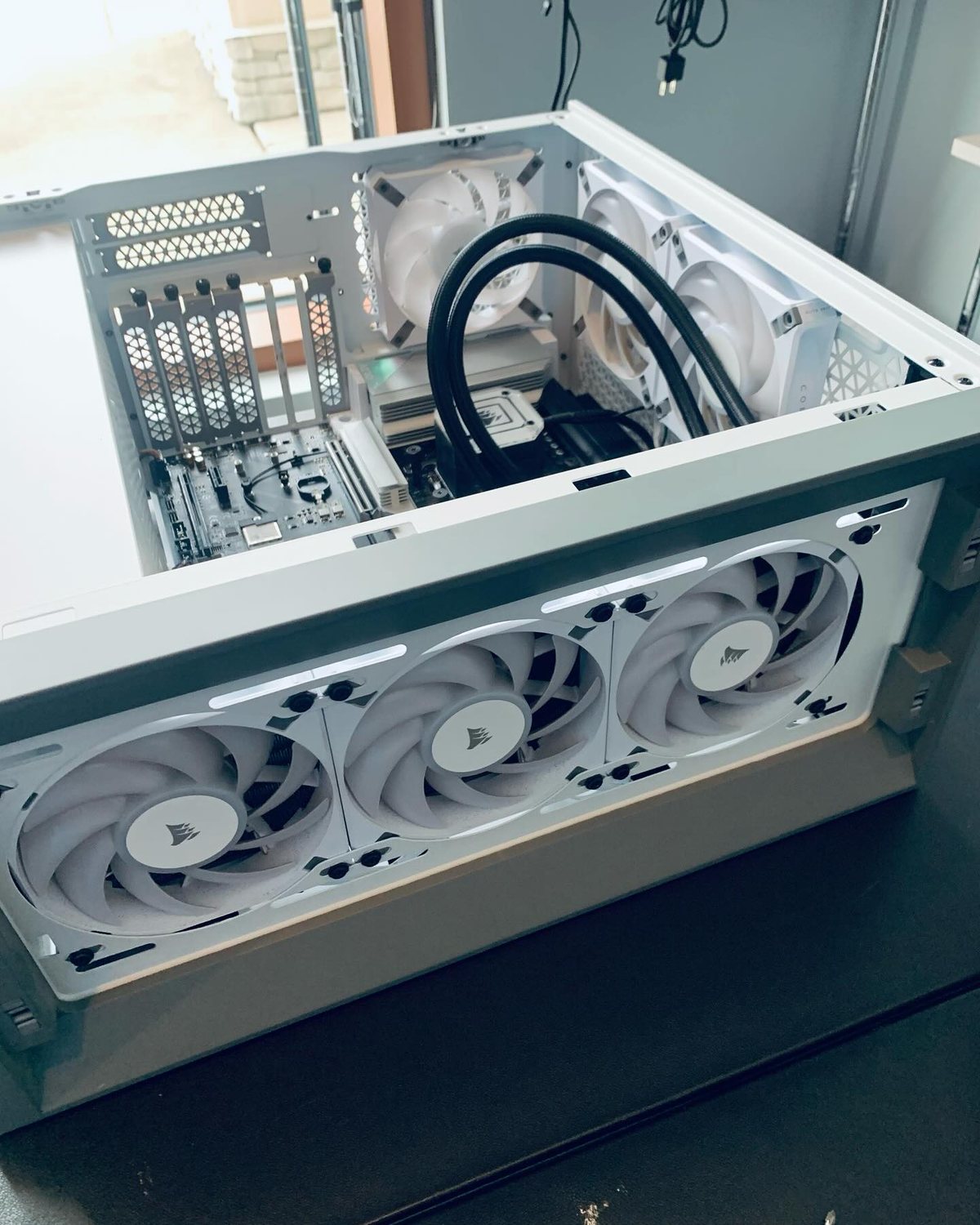

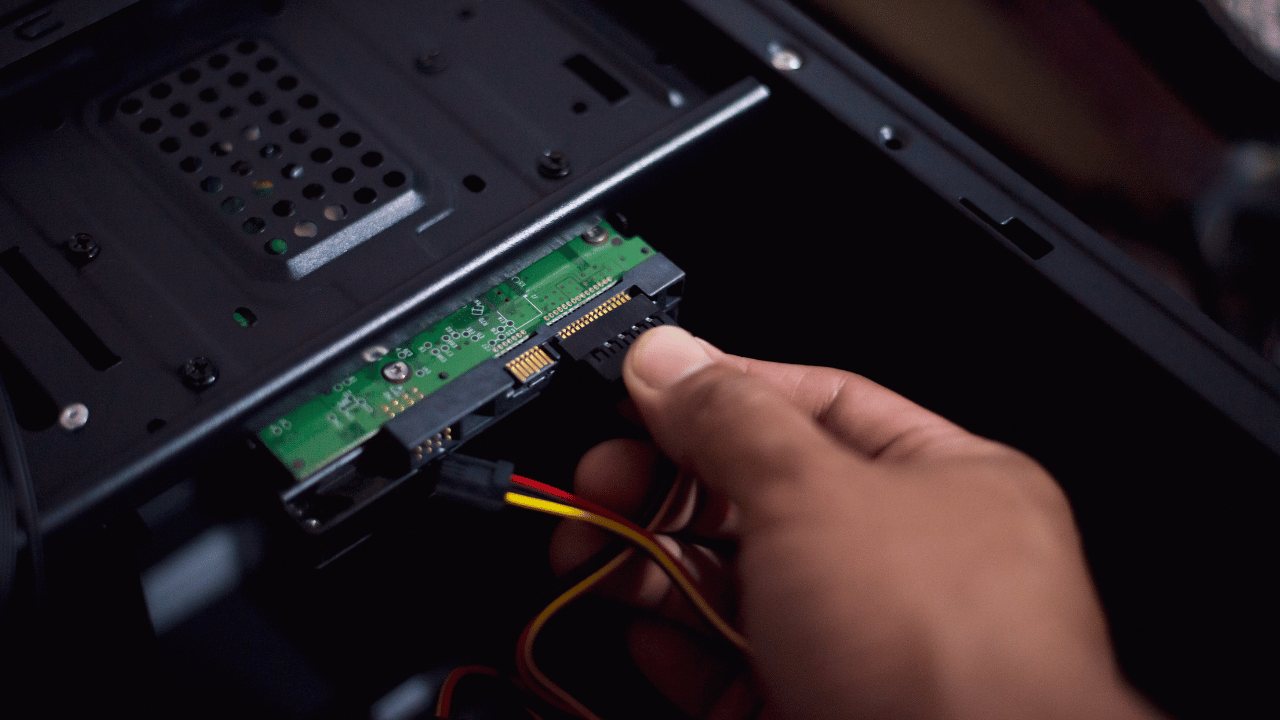
A dead computer is usually not a dead computer. Work through these 8 checks, from power cable to RAM reseat, before assuming the worst. From the techs at GeekzUP Repairs in Nashville.
You press the power button and nothing happens. Or the fans spin, the lights blink, and the screen stays black. Before you assume the machine is gone, take a breath: in our Hendersonville shop, a large share of computers that will not turn on come back to life with surprisingly small fixes. Work through these eight checks in order.
First, define the problem
No power means nothing happens at all: no lights, no fans. No boot means it powers on but never reaches Windows or macOS. No display means it sounds alive but the screen stays black. Noting which one you have makes any repair faster.
1. Check the outlet, cable, and power strip
It sounds too simple, and it solves real cases every week. Plug a lamp or phone charger into the same outlet to confirm it works. Bypass the power strip or surge protector entirely; they fail silently, especially after storms. For desktops, push the power cable firmly into the back of the machine, and check the small power supply rocker switch (the I/O switch) has not been bumped to O.
2. For laptops: try a different charger and check the light
A laptop that will not turn on is often a laptop with a dead battery and a failed charger. Look for the charging light when you plug in; no light is a strong clue. Borrow a compatible charger if you can. Cheap replacement chargers cause many of these failures, so if yours is a no-name unit, that is a suspect too.
3. Do a hard power reset
Static charge and stuck power states genuinely happen. Unplug the computer (and remove the laptop battery if it is removable), then press and hold the power button for a full 30 seconds. Reconnect power only, no battery, and try again. This one step revives a remarkable number of dead laptops.
4. Listen and look: beeps and blink codes
If the machine powers on but will not boot, it may be telling you why. A series of beeps or a blinking pattern in the power or caps-lock light is a diagnostic code; note the exact pattern and count. Different beep patterns point to memory, graphics, or board faults, and knowing the pattern helps a technician find the fault fast.
5. Rule out the display
Fans running, lights on, black screen? The computer may be fine while the screen is not. Connect an external monitor or TV over HDMI. If you get a picture there, a laptop screen or its cable is the fault, which is a very fixable repair. On desktops, make sure the monitor cable is in the graphics card port, not the motherboard port, and try a different cable.
6. Unplug every accessory
A shorted USB device, a bad external drive, even a faulty keyboard can stop a computer from starting. Unplug everything except the power (and monitor for desktops), then try again. If it boots, add devices back one at a time until you find the culprit.
7. Reseat RAM (desktop users, if comfortable)
Memory modules can lose contact after moves, bumps, or just time. With the desktop unplugged, press the levers at each end of the RAM sticks, remove them, and click them firmly back in until both levers snap closed. If there are two sticks, try booting with one at a time. If you are not comfortable inside the case, skip this step; it is exactly what a diagnostic is for.
8. Smell and history check
A burnt-electronics smell, a recent storm, a power flicker, or a spilled drink changes the picture: stop trying and unplug the machine. Power surges kill power supplies and motherboards, and repeatedly pressing power on damaged hardware can make things worse, especially where your data is concerned.
When to stop and bring it in
- You tried the checks above and nothing changed
- You hear repeated beeps or clicking from inside
- There is any burnt smell or visible damage
- The machine died after a surge, storm, or spill
- It powers on but Windows or macOS never loads
- The files on it matter more than the machine
At GeekzUP the diagnostic is $80 for PCs and Macs ($100 for gaming systems), covers up to two hours of real testing, and is applied toward your repair. Most no-power faults are identified the same day, and if the smartest move is recovery-plus-replace instead of repair, we will tell you that straight.
Frequently asked questions
Why does my computer turn on but show nothing on the screen?
Usually the display, the display cable, or the graphics output. Test with an external monitor; a picture there means the computer works and the screen path is the fault, a common and fixable repair.
Can a dead computer still have its files recovered?
Almost always yes. The storage drive usually survives whatever killed the machine. We recover data starting at $99, and stopping power-on attempts early protects your files.
Why did my PC die after a storm?
Power surges most often take out the power supply, and sometimes the motherboard. Do not keep trying to power it on; bring it in for testing, and use a quality surge protector going forward.
How much does it cost to fix a computer that will not turn on?
It depends entirely on the fault, which is why testing comes first. The $80 diagnostic ($100 gaming) produces an exact quote you approve before any work begins.
GeekzUP Team
Veteran-owned computer repair in Hendersonville, TN. Serving Nashville and Middle Tennessee since 2012.